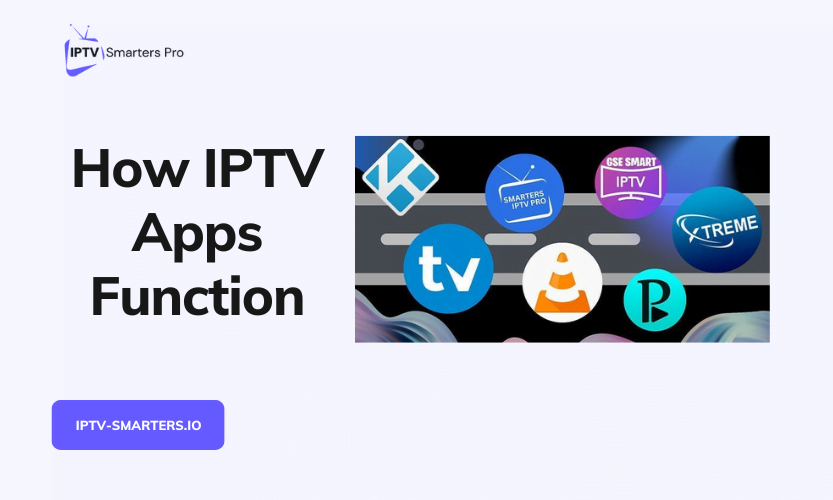

An IPTV app is a player. Your subscription is the content. A playlist or a login connects the two. That one sentence explains almost everything in this guide.
Key takeaways
- The app ships with no channels. Channels arrive only after you add a playlist or a login from a provider.
- Three layers do three different jobs: delivery protocols move the video, the playlist lists where to find it, and the login proves the account.
- M3U is a static channel list. Xtream Codes is a login that pulls channels, the guide, and video on demand together.
- The program guide comes from your provider as a data feed. Wrong times usually mean a timezone setting, not broken data.
- One login on this site streams on one device at a time, in any player.
The player and the provider are different things
Every IPTV app works the same way at the top level. The app itself holds no channels, no films, and no sports rights. It is an empty player with menus, a guide grid, and a video screen. Your provider supplies everything that appears on that screen.
This split explains most confusion about IPTV apps. When channels vanish, the cause is usually provider-side: an expired login, a changed playlist address, or a provider outage. The app did not lose the channels. It only lost its source. When the app itself fails, the symptoms look different: crashes, a frozen menu, or a login screen that will not accept typed details.
Keep the split in mind through the rest of this guide. The app controls how channels look and play. The provider controls which channels exist and whether they stream.
The three layers in plain words
Four terms cause most of the confusion: HLS, MPEG-DASH, M3U, and Xtream Codes. They sound similar, but they solve different problems. Think of them as three layers.
The delivery layer moves the video. HLS and MPEG-DASH are delivery protocols. They split video into short segments and send those segments to your device one after another. Your player stitches the segments back into continuous playback. If your connection slows, the player can switch to a lower-quality segment and keep playing. That adaptive switch is the main job of this layer.
The address book layer lists where to find things. M3U and M3U8 are playlist formats. A playlist is a text list of channel stream links, downloaded from a web address. It says nothing about your account. It only lists addresses the player can open. An M3U playlist can point at HLS streams, so the two layers often appear together. Comparing “M3U versus HLS” is the wrong question. One is the list, and the other is the delivery method for items on that list.
The membership card layer proves the account. Xtream Codes is a login API. You enter a server address, a username, and a password. The provider checks those details and returns your channels, your guide, and your video on demand library. Nothing about your account sits inside a shared link. The login itself is the proof.
One setup screen can show all three layers at once, which is why they blur together. Keep the jobs separate: delivery moves video, the playlist lists addresses, and the login proves the account.
M3U versus Xtream Codes
Most providers offer one or both login forms. Both forms reach the same channels. They differ in setup effort, guide handling, and credential safety.
| Feature | M3U playlist | Xtream Codes login |
|---|---|---|
| What you enter | One playlist web address | Server address, username, and password |
| How channels load | Whole file at once | Pulled step by step through the login |
| Program guide | Needs a separate guide address, added by hand | Usually loads automatically with the login |
| Films and series | Listed from the playlist, if included | Organised into categories by the login |
| Catch-up | Depends on the playlist | Usually included where the provider offers it |
| Speed on large lists | Slower, since the whole file loads first | Faster, since items load as you browse |
| Credential exposure | Credentials sit inside the link itself | Credentials stay out of any link string |
Choose Xtream Codes when your provider offers both. Setup is shorter, the guide usually arrives on its own, and films and series arrive organised. Choose M3U when it is the only form your provider sends, or when your player takes only playlists. Either form works. The choice is about convenience, not channel quality.
One safety rule applies to M3U links. The link itself contains your login credentials, encoded in the address. Never share a full M3U link, and never post a screenshot that shows one. Anyone holding the link holds your login. Xtream Codes avoids this risk, since the username and password travel through the login screen, not inside a shareable address. Keep either form private either way.
Where the program guide comes from
The program guide, called the EPG, comes from your provider as a data feed. The common feed formats are XMLTV and JTV. The player downloads the feed, then matches each channel ID in the feed to a channel in your playlist. Once matched, the schedule appears in the guide grid.
This matching step explains the two most common guide complaints. An empty guide usually means the feed address is missing or wrong, or the provider supplies no feed for your playlist. With M3U, the feed address must be added by hand, so a missing guide often means a missing address. With Xtream, the guide arrives with the login, so an empty guide points at the provider feed instead.
Wrong guide times have a simpler cause. The feed carries times in a fixed zone, and the player converts them to your local zone. If the player timezone setting is wrong, every programme shifts by the same amount. Check the timezone setting in the player before reporting the feed as broken. A uniform shift across all channels is a settings problem, not a data problem.
Guide quality still depends on the provider. Some providers supply full two-week schedules. Others supply only a few hours, or nothing at all. No player can invent schedule data that the provider never sent.
What the app does not do
An IPTV app does not supply channels, and it does not control provider outages. If your provider’s servers fail, every player using that provider fails at the same time. Switching players will not restore a dead provider feed. The honest test is simple: if one channel fails in two different players, the problem sits with the provider or your connection, not with the app.
The app also does not set your stream limit. Stream limits come from the plan, not from the player. Some players show several channels on one screen at once. That multi-view feature shows up to 4 channels on a single device, and it still counts as viewing on that one device. Streaming on two separate devices at once is a different matter, and it is governed by the plan. On this site, one login streams on one device at a time.
The app does not need a VPN to function. A VPN changes your apparent location on the network. It adds no channels, and it does not repair a provider outage. If channels fail to load, check your login details, your playlist address, and your connection before changing anything else.
How a stream reaches your screen, step by step
The full chain has five steps. First, you open the player and it reads your saved login or playlist. Second, the player contacts the provider and pulls the channel list, plus the guide feed where one exists. Third, you pick a channel, and the player opens the stream address for that channel. Fourth, the provider serves the video in short segments through HLS or MPEG-DASH. Fifth, the player stitches the segments together and shows continuous video, switching quality up or down as your connection allows.
Any break in that chain has a matching symptom. A login error points at step one or two. A channel list with no playback points at step three. Buffering during playback points at step four, which is usually connection speed or provider load. Naming the step narrows the fix, and it stops the common mistake of reinstalling the app for a provider problem.
Trying this site’s plans
This site’s plans work with any player. Plans cost $29.99 for 3 months, $59.99 for 6 months, and $89.99 for 12 months. There is no monthly plan. A 24-hour trial is available, with no card requested. Login details arrive within 1 to 3 hours after WhatsApp approval. Once you have a login, the Android players guide helps you pick a player for it, and the Windows players guide covers computers.
Support is available around the clock on WhatsApp at +44 7475498002, or by email at [email protected].
FAQ
Do IPTV apps come with channels?
No. An IPTV app is only a player. It shows no channels until you add a playlist or a login from a provider. Any app that promises channels with no subscription is promising something it cannot supply on its own.
Should I choose M3U or Xtream Codes?
Choose Xtream Codes when your provider offers both. The guide loads automatically, films and series arrive organised, and your credentials stay out of any link. Choose M3U when it is the only form offered, and add the separate guide address by hand.
Why is my program guide empty?
With M3U, the usual cause is a missing or wrong guide address. Paste the XMLTV address your provider sent. With Xtream, the guide arrives with the login, so an empty guide usually means the provider feed itself is missing. Ask your provider in that case.
Why do guide times look wrong?
Check the timezone setting in the player first. A uniform shift across all channels means the player converts feed times to the wrong local zone. Fix the setting, and the times line up.
Can I use one login on two devices at the same time?
You can sign in on several devices, but this site allows one simultaneous stream per login. A second stream will interrupt the first. Watching several channels on one screen inside one player is different, and it stays within the one-device rule.
Does switching players fix buffering?
Usually not. Buffering during playback usually means slow connection speed or provider load. Try a wired connection, or test the same channel in a second player. If both players buffer, the cause sits outside the app.