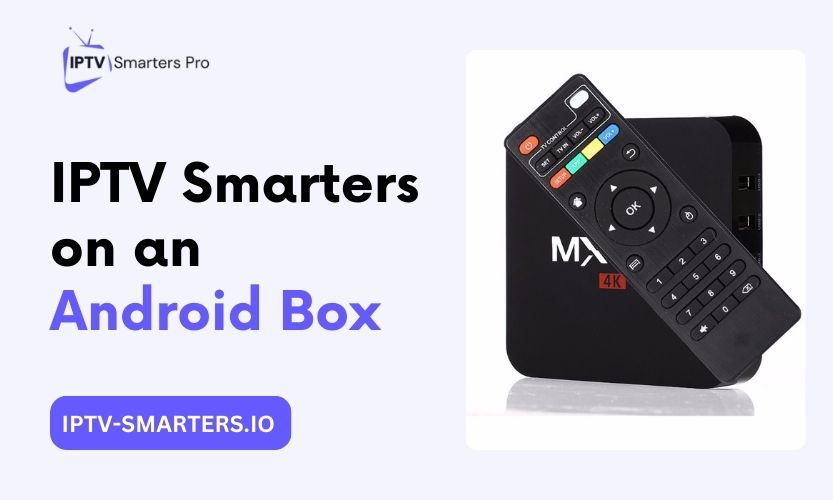

To install IPTV Smarters on an Android box, check the Google Play Store first, but install only a listing you can verify. Same-name listings exist and none is confirmed as the official publisher. If nothing checks out, sideload the APK from the developer’s official site only, then log in with your Xtream Codes credentials or M3U link. The job takes about ten minutes with your login details ready.
Key takeaways
- IPTV Smarters is a player, not a provider. It shows channels from a subscription you already hold, and it ships with none.
- Check the Play Store listing before you install. Same-name listings exist and none is confirmed as the official publisher, so if anything looks off, sideload the APK from the developer’s official site only.
- Log in with Xtream Codes credentials when your provider supplies them. Use an M3U link as the fallback.
- Most failed setups come from mistyped credentials. Copy yours exactly, case and all.
What IPTV Smarters actually is
IPTV Smarters is a media player app. It does not sell subscriptions, and it carries no channels of its own. It takes the login details from your IPTV provider and turns them into a TV interface with a channel list, a program guide, and on-demand libraries. Same-name listings exist on Google Play, and none is confirmed as the official publisher, so do not treat any listing as official by name alone. TechBullion’s 2026 setup guide draws the same line between player and provider, and it is worth reading if you want a second explanation of how the two fit together.
Two terms matter before you start. Xtream Codes is a login format where your provider gives you a server URL, a username, and a password. M3U is a single playlist link your provider generates. Both open the same content, but Xtream Codes also pulls your program guide automatically, so it needs fewer steps.
What you need before you start
Gather five things before you start: the box, a Google account for the Play Store, your provider login, free storage, and enough speed. With them ready, setup takes minutes.
- An Android TV box connected to the internet. A wired Ethernet cable gives the steadiest stream, but Wi-Fi works. The box should run Android 5.0 or newer, which covers nearly every box sold in recent years.
- A Google account signed in on the box, if you plan to use the Play Store.
- Your provider login: Xtream Codes details or an M3U link. Xtream Codes details are a server URL, a username, and a password. Keep them open on your phone so you can copy them letter for letter.
- Enough free storage for the app plus its cached guide data. If the box is nearly full, remove apps you never open. Accept the storage permission when asked, so the program guide and channel logos load.
- A connection of at least 10 Mbps for HD and 25 Mbps for 4K, with 20 Mbps for HD and 50 Mbps for 4K as comfortable headroom, as of October 2026. If you have no subscription yet, start with the 24-hour free trial to test the service on your box first.
Choose your install method
There are two ways to install IPTV Smarters on an Android box. Pick yours from the table, then follow that method below.
| Your box | Use this | Why |
|---|---|---|
| Android TV box with the Google Play Store, such as Nvidia Shield, Mi Box, or Chromecast with Google TV | Method 1: Play Store install | Store listing unverified; automatic updates only apply to a genuine store install |
| Android box with no Play Store, which covers many generic boxes | Method 2: sideload the APK | Needs no store access |
| Amazon Firestick or Fire TV | Firestick guide | Amazon’s store does not list the app |
One caution, as of October 2026. The app’s store presence has shifted over time and differs by region. Same-name listings exist and none is confirmed as the official publisher, so if your Play Store search shows no listing you can verify, skip to Method 2 instead of installing a lookalike app. A genuine store install also keeps updates automatic, so you never run an old build by accident.
Method 1: Install from the Google Play Store
When a listing you can verify is available, this route takes about two minutes.
- Open the Google Play Store from your box’s home screen.
- Search for IPTV Smarters Pro.
- Open the listing and inspect the publisher name and listing details. Same-name listings exist, and none is confirmed as the official publisher, so do not treat any listing as official by name alone.
- Install only if you can verify the listing is genuine. If anything looks off, or no listing appears, stop and use Method 2.
- Open the app from your apps list, then move to the login steps below.
Method 2: Sideload the APK with the Downloader app
Use this method when the Play Store has no listing you can verify. Download the APK only from the developer’s official website. Third-party APK sites are a common source of tampered files, so avoid them entirely. As of October 2026, the developer’s official site did not resolve when last checked on October 27, 2026. If the official site does not load, wait and retry it later instead of substituting another source.
- Install the Downloader app, published by AFTVnews, from your box’s app store.
- In the box settings, allow Downloader to install unknown apps. The exact menu wording varies by box, so look under the security or apps section.
- Open Downloader and enter the download address shown on the developer’s official site.
- When the download finishes, select Install, then Done.
- Delete the APK file to free up space.
- Open IPTV Smarters from your apps list, then move to the login steps below.
If your box has no Downloader app, copy the APK to a USB stick from a computer, plug the stick into the box, and open the file with the box’s file manager. The install prompt appears the same way.
Add your provider and load your channels
Installing the app is half the job. Now connect it to your subscription.
- Open the app and accept the terms on first launch.
- Pick the TV layout when asked. It suits remote control navigation.
- Select Add New User.
- Choose your login method. The table shows the trade-off.
| Xtream Codes API | M3U URL | |
|---|---|---|
| You enter | Any name, server URL, username, password | Any name, playlist link |
| Program guide | Loads by itself | Needs a separate EPG link added in settings |
| Pick it when | Your provider sent all three credentials | Your provider sent only a link |
- Select Add User and wait. A large channel list can take a minute or two to load, so give it time before you decide the app has frozen.
Type only the host and port in the server box, never the full M3U link. If your provider sent a link ending in get.php, the server is the part before the first slash after the port, and the username and password are the parameters in that link.
When the load finishes, the home screen shows three sections: Live TV for channels, plus Movies and Series for on-demand content. Open Live TV first and play one channel before you change any settings. If it plays, the setup worked. The program guide may take a few more minutes to fill in after the channels appear, so browse one channel first and let the guide catch up in the background.
Settings worth changing after setup
The defaults work, but six tweaks prevent most later complaints.
- Player decoder. If a channel stutters or errors while others play fine, switch between hardware and software decoding in the player settings.
- Program guide. If guide times look wrong, check the time zone in the EPG settings and refresh the guide.
- Favorites. Star the channels you watch daily so you stop scrolling through hundreds of entries.
- Parental controls. Set a PIN on adult or mature categories before you hand the remote to kids.
- Auto-reconnect. Turn it on so a brief network drop does not force you to find the stream again from scratch.
- App updates. Leave automatic updates on in the Play Store so fixes reach you without a reinstall.
If a channel stutters in the built-in player, try the other player engine in the player settings before you switch to an external player.
If a movie or episode refuses to play in the built-in player, try an external player such as VLC or MX Player from the app’s player settings.
When something goes wrong
These fixes cover every common failure after you install IPTV Smarters on an Android box. Work through them in order, because the first fix solves most cases.
Login and playback problems
- Login fails or the list stays empty. Retype your credentials. They are case-sensitive, and one stray space breaks the login. Then confirm your subscription is still active.
- Right details, wrong boxes. Xtream Codes credentials typed into the M3U fields, or the reverse, never work. Check that the login method you picked matches what your provider sent.
- Channels load but will not play. Toggle the decoder between hardware and software in the player settings.
- Picture is black but sound plays. Switch the player engine in the player settings.
- Subscription renewed but the list still looks expired. Refresh the playlist in the settings. If the list still looks expired, delete the user and re-add the same details.
Buffering, guide, and crashes
- Buffering. Test your speed first: at least 10 Mbps for HD and 25 Mbps for 4K, with 20 Mbps and 50 Mbps as comfortable headroom. Switch to a wired connection if you can, and close background apps. As a test, drop one channel to a lower quality for a minute. If it smooths out, bandwidth is your bottleneck.
- Network or line problem. Play one channel on your phone over mobile data. If it plays there, the issue is your home network, not your line. When your speed is fine and the phone test passes, the provider’s server is usually the cause, so try again later or ask your provider about an alternate server.
- Guide is blank or shows “no information”. Refresh the EPG in the settings. On an M3U login, add the EPG link your provider gave you.
- App crashes on launch. Clear the cache in the box settings under Apps, then reopen. If it still crashes, reinstall the app.
Know what these fixes will not solve. A dead provider server and an expired subscription sit outside the app’s control, and no setting repairs either one. For account issues, contact support.
Limits worth knowing
Once you install IPTV Smarters on an Android box, keep three limits in mind. First, the app is only as good as the service behind it. A weak provider buffers on every player, so judge the two together. Second, one login streams on one device at a time under our plans, so installing the app on several boxes is fine but watching on two at once is not. Third, store availability changes: if the Play Store listing vanishes in your region later, the sideload method in this guide still works.
For install steps on other devices, see our installation hub and the smart TV setup guide. Current plan details are on the pricing page.
Once the app is on your box, our daily guide to using IPTV Smarters Pro covers the two logins, favorites, guide times and the player settings you will use every day.
If your box has the Play Store, check the listing first before you install. Without a listing you can verify, Method 2 reaches the same finish line with a few extra taps. Either way, type your credentials exactly as your provider sent them, because that one step causes most failed setups. Still deciding on a provider? Test the service on your box with the 24-hour free trial first.
Frequently asked questions
Is IPTV Smarters free to download?
Yes. The app costs nothing to install. You still need a separate IPTV subscription to watch anything, because it ships with no channels.
Does the app include any channels?
No. It is a player only. Channels, movies, and series all come from the provider you log in with.
How long does it take to install IPTV Smarters on an Android box?
About ten minutes end to end: two for the install and a few more for the login and the first channel load. Have your credentials ready before you start.
What if the Play Store shows no official listing?
Use the sideload method above when the store listing is missing or cannot be verified. Do not install a lookalike app, and do not treat a same-name listing as the official app.
Why isn’t IPTV Smarters Pro on Google Play?
The app is not reliably listed on Google Play. It has been removed from the store in the past, and its availability has varied by region since then. Same-name results still appear, but none is confirmed as the official publisher. That is why this guide treats the store route as check-first, with sideloading from the official site as the fallback.
Should I pick Xtream Codes or M3U?
Pick Xtream Codes whenever your provider offers it. Setup is faster and the program guide loads by itself. Use M3U only when your provider sends nothing else.
What should I type in the server URL box?
Enter the host and port only. A server entry looks like a host name followed by a port number, not a full playlist link. When your provider sends a link ending in get.php, the server is the section before the first slash after the port, and your username and password come from the parameters in that same link.
Why does the guide show the wrong times?
The time zone in the app does not match yours. Open the EPG settings, set the correct zone, and refresh the guide. The times correct themselves on the next load.
Can I use the same login on a second box?
You can install the app on as many boxes as you like. Streaming at the same time on two of them is not allowed under our plans, so keep to one active stream.
Is it safe to download the APK from another site?
No. Download the APK only from the developer’s official website. Third-party sites are a common source of tampered files, and a shortened link hides where the file really comes from. If the official site does not load, wait and retry it later instead of substituting another source.
Where do I get help if setup still fails?
Check the FAQs for quick answers, or contact support with your box model and the exact error message.