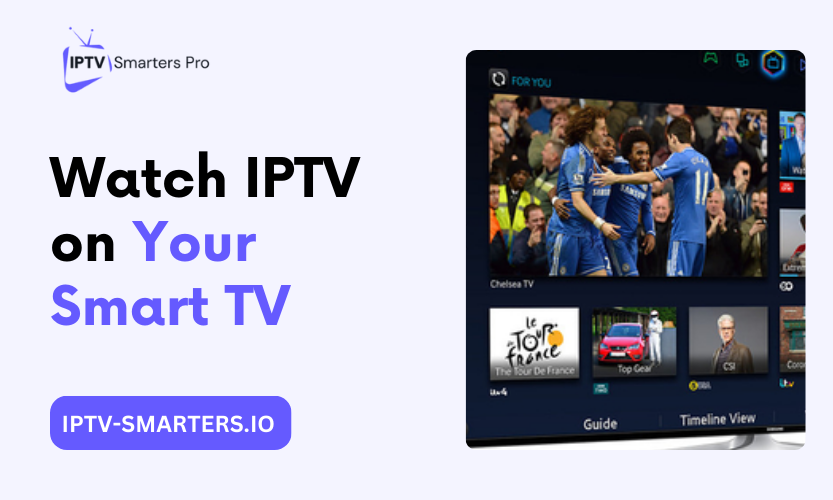

To watch IPTV on smart TV sets, install IPTV Smarters Pro from your TV’s own store, then log in with your provider’s Xtream Codes credentials. Samsung, LG, Android TV and Fire TV take slightly different paths, and store listings come and go by region. This guide walks each brand’s steps, the login, and your options when the listing is missing.
IPTV Smarters Pro is a player, not a provider. It shows the channels from a subscription you already hold and ships with none of its own.
Key takeaways
- Search your TV’s own store first. Samsung runs Tizen and LG runs webOS, and the listing appears in some regions and vanishes in others.
- When the store shows nothing, plug a Fire OS stick or Android box into the TV’s HDMI port and run the full app there.
- Log in with Xtream Codes when your provider offers it. The program guide loads by itself.
- Type your credentials exactly as your provider sent them. One stray character blocks the login.
Which smart TVs can run the app
The app has native store listings on Samsung Tizen, LG webOS, and Android TV and Google TV. Fire TV runs it through a Fire OS sideload or through a stick or box over HDMI, since Amazon’s store does not list the app natively. If you want to watch IPTV on smart TV hardware, these are the platforms to check first. For a Vizio set, see our Vizio Smart TV guide.
Availability is the catch. Listings on the Samsung and LG stores come and go and differ by region: one current guide walks the store install step by step, while another reports no native listing in its region at all. As of October 2026, treat the store as your first stop, not a guarantee.
Two limits apply before you start. The app is only as good as the subscription behind it, and our plans allow one active stream per login, so the TV and your phone cannot watch at the same time.
Your TV, your path
Pick your TV below and follow the matching section. The table matches each brand to its install path, so you can watch IPTV on smart TV sets without guessing.
| Your TV | The path | Follow this section |
|---|---|---|
| Samsung Tizen TVs | Install from the Samsung app store | Samsung TVs: install from the app store |
| LG webOS TVs | Install from the LG Content Store | LG TVs: install from the Content Store |
| Android TV or Google TV, such as Sony, TCL or Chromecast models | Install from the Google Play Store | Android TV and Google TV: use the Play Store |
| Fire TV Stick or Cube | Sideload on Fire OS sticks only, or plug it into any TV’s HDMI port | Fire TV: two ways onto the big screen |
| No listing in your region | Run the app on an external device | Fire TV: two ways onto the big screen |
Samsung TVs: install from the app store
On Samsung, open the Smart Hub, search the Apps section, and install the official listing. With the app installed, you can watch IPTV on smart TV sets from Samsung with no extra hardware.
Most setup guides cite 2017 or newer models, and listings vary by model year and region.
- Press Home on the Samsung remote and open Apps.
- Select the search icon and type “IPTV Smarters Pro”. If nothing appears, also try “Smarters Player Pro” and “Smarters Pro”. Regional stores label the app differently.
- Open the official listing and select Install.
- Select Open and move to the login section below.
Sign in to your Samsung account first if the store asks.
If the search shows nothing, the listing is missing in your region for now. Do not install a lookalike app from the results. Use the stick-in-HDMI fallback in the Fire TV section instead.
LG TVs: install from the Content Store
On LG, the path runs through the LG Content Store on webOS. The steps to watch IPTV on smart TV sets from LG differ from Samsung only in the store name.
- Press Home on the LG remote and open the LG Content Store. On newer models the store may be labelled “Apps”.
- Select the search icon and type “IPTV Smarters Pro” or “Smarters Player”. Listing names vary by region, so try a shorter search if the full name shows nothing.
- Select Install and wait for the download to finish.
- Launch the app and move to the login section below.
Keep your internet connection active during the search and the install. The store lookup fails quietly on a dropped connection.
Android TV and Google TV: use the Play Store
Android TV and Google TV take the simplest path of all: the Google Play Store.
- Open the Play Store from the TV home screen.
- Search for “IPTV Smarters Pro” and check before you install. Same-name listings exist on the Play Store, and none is confirmed as the official publisher.
- Open the app and move to the login section below.
These steps mirror the Android box setup, which our Android box guide covers with extra detail on TV boxes. You can watch IPTV on smart TV sets from Sony or TCL the same way.
Fire TV: two ways onto the big screen
Fire TV owners have two honest options: sideload the app onto a Fire OS stick, or plug the stick into a Samsung or LG TV’s HDMI port.
Check your stick first. Go to Settings, then My Fire TV, then About. A software version listed as OS starting with 1 means Vega OS. Fire OS 7 or 8 means sideloading works.
Vega OS sticks cannot sideload apps at all. The Fire TV Stick 4K Select, the new Fire TV Stick HD, and the third-generation Fire TV Stick 4K all run Vega OS. No method works around that limit, not Downloader, not ADB, and not Apps2Fire. Check which Fire TV models cannot sideload before you buy or start.
The direct route is the sideload, and it works on Fire OS sticks only. Amazon’s store does not list the app, so install the Downloader app from the Amazon store, allow it to install unknown apps, and download the APK from the developer’s official site. The developer’s official site did not resolve when last checked Oct 27, 2026, so wait and retry if it fails to load.
Stay away from third-party APK sites entirely. Their files can be modified or carry malware. The full sideload routine is in our dedicated Firestick guide, which matches Fire TV step for step.
The fallback route suits Samsung and LG owners whose store has no listing. Plug a Fire OS stick or Android box into the TV’s HDMI port and run the app on the stick. The TV’s own remote usually still handles basic playback through HDMI-CEC, so the experience feels close to a native app. This is the most reliable way to watch IPTV on smart TV sets in regions where the store listing never appears.
Log in with Xtream Codes or M3U
Every way to watch IPTV on smart TV starts with one of two logins: Xtream Codes or an M3U link.
- Open the app and accept the terms on first launch.
- Select Add New User, then “Login with Xtream Codes API”.
- Enter a name, the server URL, the username, and the password exactly as your provider sent them.
- Select Add User and wait for the channel list to load.
Xtream Codes is the better pick when your provider offers it. The program guide loads by itself, and you skip the manual EPG step entirely.
If your provider sent an M3U link instead, choose the playlist login on the first screen and paste the link. Then add the EPG link your provider gave you, because M3U lists do not carry guide data by themselves.
Set up the guide and playback
Three settings make the big screen feel right: the guide source, the buffer size, and the decoder.
- Guide. With Xtream Codes, listings and programme times populate within minutes of the first login. On an M3U login, set the correct time zone before you refresh the guide, or the times will sit wrong.
- Buffer size. Set it to Medium or Large on a good connection. A larger buffer pre-loads more data and stops stutters before they start.
- Decoder. Enable hardware decoding so the TV’s own chip handles the video. That one switch keeps playback smooth on most sets.
Speed matters too. As of October 2026, allow at least 10 Mbps for HD and 25 Mbps for 4K, with headroom above that when several devices stream at once. A wired cable to the TV beats Wi-Fi, because a stick or TV far from the router buffers regardless of how good the subscription is.
Snags that look like failures
Five TV-specific snags mimic a broken app, and each has a quick fix.
- The app is missing from the store. Search all three names from the Samsung section above. If none appears, use the stick-in-HDMI fallback from the Fire TV section.
- The guide is empty after login. Give it a few minutes, then refresh. On an M3U login, confirm the EPG link your provider sent is actually saved.
- The guide times are wrong. Set the correct time zone first, then refresh the guide. The times correct themselves on the next load.
- Everything buffers on Wi-Fi. Move the router closer to the TV or wire it. A TV far from the router struggles no matter which app runs.
- Login fails with a date or certificate error. Set the TV’s clock to automatic, then try again.
Deeper trouble, such as repeated crashes, login failures on every device, or black screens on all channels, belongs in our troubleshooting guide. It walks the full fix order.
What this guide cannot fix
Some failures sit outside the app entirely, and no setting repairs them.
- A provider server that is down or under maintenance. The app cannot reach what is not there, so wait it out or ask your provider for a status update.
- An expired or suspended subscription. Only the provider can restore it, and the app keeps rejecting the old details until then.
- A second stream on the same login. Our plans allow one active stream, so the extra session gets cut no matter how often you log in again.
- Store availability in your region. Nobody can publish the listing for you, so the external-device path above is the real answer there.
Judge the provider and the player together. A weak service buffers on every app you try, including this one.
Frequently asked questions
Can I watch IPTV on smart TV without a Firestick?
Yes. Samsung, LG and Android TV sets can install the player straight from their own stores in regions where the listing exists, so no stick is needed. The stick only becomes necessary when your store shows no listing.
Why is IPTV Smarters missing from my Samsung or LG store?
Store listings come and go by region. Search “IPTV Smarters Pro”, “Smarters Player Pro”, and “Smarters Pro”. If none appears, run the app on a Fire OS stick or Android box plugged into the TV’s HDMI port.
Do I need a subscription to use the app?
Yes. The app is a player and ships with no channels. Every channel, film and guide entry comes from the provider login you enter. Test the service on your TV with the 24-hour free trial before you commit to a plan.
Should I use Xtream Codes or M3U on a TV?
Use Xtream Codes when your provider offers it. The program guide loads by itself and setup needs no extra EPG link. Use M3U only when your provider sends nothing else. You still watch IPTV on smart TV sets with the same channels once logged in.
Why is my program guide empty after login?
The guide data is still loading, or the EPG link is missing on an M3U login. Wait a few minutes and refresh the guide. On an M3U login, add the EPG link your provider sent and refresh again.
What speed do I need for 4K on a smart TV?
As of October 2026, allow at least 10 Mbps for HD and 25 Mbps for 4K, with headroom above that when several devices stream at once. Use a wired connection for live sport, because Wi-Fi dips interrupt playback at once.
Can I use the same login on my TV and phone at once?
You can install the app on both, but our plans allow one active stream per login. Stop the first stream before starting the second, or the extra session gets cut.
Where do I get help if setup fails?
Check the FAQs for quick answers, or contact support with your TV model and the exact error message. Reach us on WhatsApp at +44 7475498002, by email at [email protected], or through the contact page.
Can I sideload the app on a new Fire TV Stick?
Only on Fire OS sticks. Vega OS sticks cannot sideload apps at all. The Fire TV Stick 4K Select, the new Fire TV Stick HD, and the third-generation Fire TV Stick 4K all run Vega OS, and no method works around that limit. Check Settings, then My Fire TV, then About before you start. On a Vega stick, use a Fire OS stick or an Android box instead.
If your store lists the app, the Samsung or LG path above gets you watching in minutes, and the Xtream login keeps the guide effortless. If the listing is missing, a Fire OS stick in the HDMI port is the setup I would pick over waiting for a listing that may never come. It runs the full app, keeps every feature, and works in every region. Either way, test the subscription on your TV with the 24-hour free trial before you pay for a plan.